Introduction
As part of my company's migration from Autodesk Vault as an Engineering management system, I was in charge of developing a method for extracting all of the files and metadata to be prepared for importation into the new system.
Our reason for migrating to the new system was because we were only licensed for Autodesk Vault Basic, and as such didn't have any of the engineering change management/versioning features available to us
This presented quite a few challenges and risks that had to be handled along the integration project:
- Ensuring that the latest valid revision of every file was copied across
- Preserving original file names to ensure that Autodesk Inventor was still able to reference the BOM correctly (avoiding missing links in assemblies)
- Converting the metadata from the Autodesk database into one that could be loaded into Excel and passed to the Windchill integration team
- Validating the data along the way (with help of engineering management and team)
Integration Scope
As part of the scoping for this project, we determined that we would only include the following resources from Vault:
- Assemblies (.iam)
- Drawings (.dwg)
- Parts (.ipt)
Data Structure of Autodesk Vault
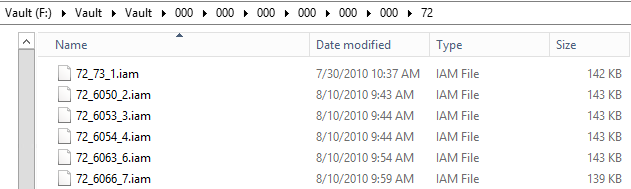
The files stored on the Vault server that we needed to extract were named in an obscure folder/file naming scheme that needed further investigation to try to link to the file names/folder structure shown in the Vault client (example below of jumbled file/folder naming)
Investigating the Vault Database
Finding tables of interest
The next point from here is to look inside the Vault database to try to work out where/how the metadata is stored so we can link to the correct file.
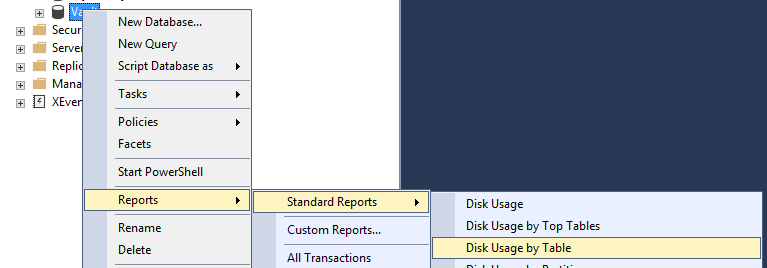
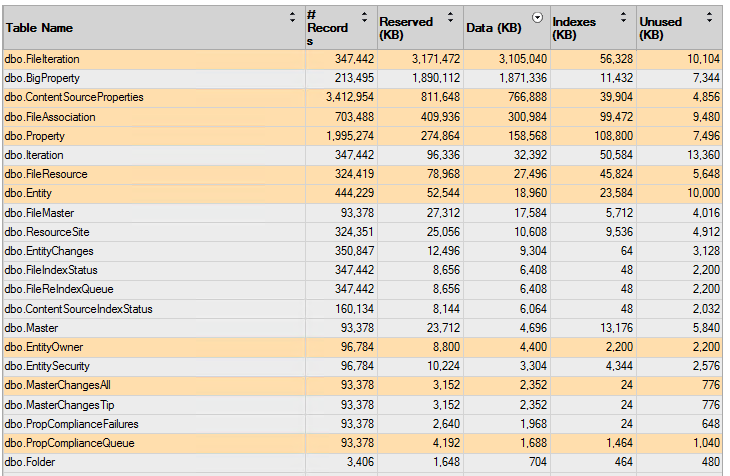
Using Microsoft SQL Server Management Studio to connect to the Vault database, I began by running the "Disk Usage by Table" report to find out which tables would likely hold the metadata needed
Running this report shows a good list of table to start investigating:
Vault Database Folders
Since we were wanting to preserve the folder structure from Vault into the new system, I thought that the "Folder" table would be a good one to start with and indeed it was:
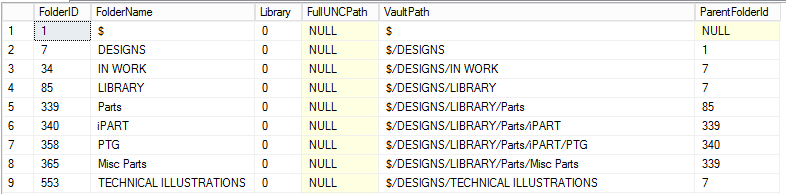 Looking at this table, we can see the name of the folder (FolderName) and the parent folder that it belongs to (ParentFolderId). From there we are able to build up a diagram of the folders that looks something like this:
 From here we need to work out a way using an MSSQL query to recurse through these folders and then find all of the files shown inside them. But first we need to find out how the Files are stored and versioned
Vault Database Files
After searching through the rest of the tables one by one from the report we can start to build up a better picture of the data and relationships, which ended up looking like this:
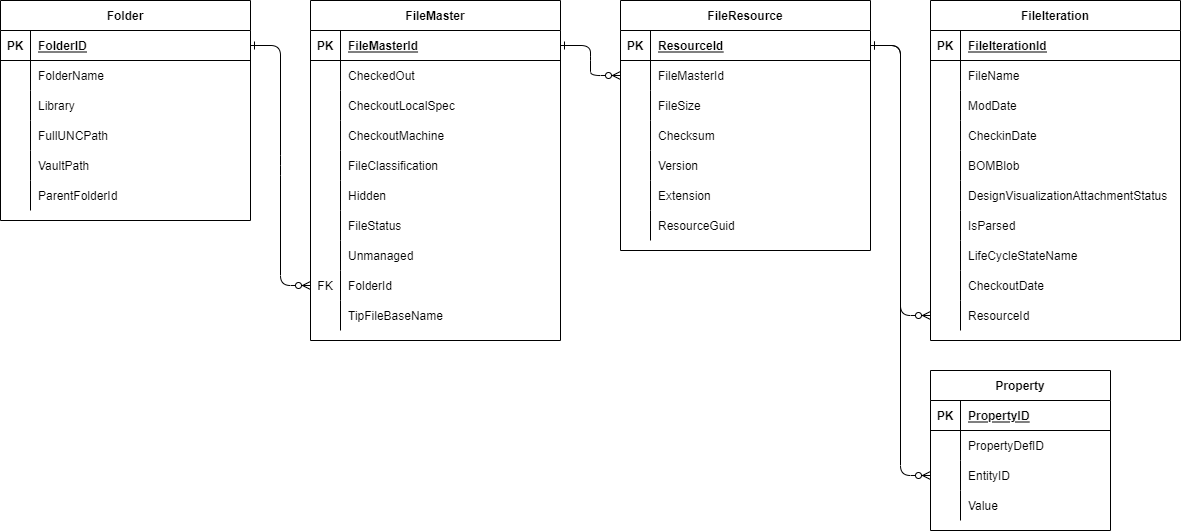 From here we can pick out the fields that we are interested in from the various tables and start building up the final query
Recursive SQL Query
In order for us to traverse down the folder structure in the database, we will need to use a recursive SQL query:
-- Folder recursion
WITH FolderCTE AS (
    SELECT
        ParentFolderID,
        FolderID,
        FolderName,
        VaultPath,
        0 AS LEVEL
    FROM
        Folder
    WHERE
        Folder.FolderID = 1
UNION ALL
    SELECT
        f.ParentFolderID,
        f.FolderID,
        f.FolderName,
        f.VaultPath,
        p.[Level] + 1
    FROM
        Folder AS f
        INNER JOIN FolderCTE AS p ON f.ParentFolderId = p.FolderID
    WHERE
        f.ParentFolderId IS NOT NULL
    )

-- Select query
SELECT * FROM FolderCTE
This might look a bit daunting, but it is called a "Common Table Expression". An easy way to process this is to break it down into it's parts:
Starting Select
The first part of this query
SELECT
        ParentFolderID,
        FolderID,
        FolderName,
        VaultPath,
        0 AS LEVEL
    FROM
        Folder
    WHERE
        Folder.FolderID = 1
Will setup the starting point, by selecting a single record: (where FolderID = 1, or the root $ folder)

Self-Join
From there it will join onto itself by linking the ParentFolderId to the FolderID:
FROM
        Folder AS f
        INNER JOIN FolderCTE AS p ON f.ParentFolderId = p.FolderID
    WHERE
        f.ParentFolderId IS NOT NULL
Union results
Once it's established the join, it will UNION the results together with the first row returned:
UNION ALL
    SELECT
        f.ParentFolderID,
        f.FolderID,
        f.FolderName,
        f.VaultPath,
        p.[Level] + 1
Resulting table
The result of this will be a list of all of the folders and their depth (LEVEL):
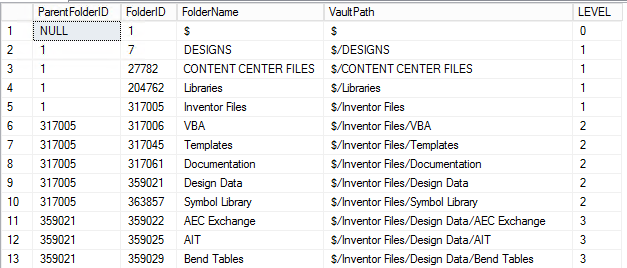 From there we can join off to the individual files that are contained in each folder
Final SQL Query
Here is the final SQL query, using the recursive CTE above as well as joining to the various tables
-- Folder recursion
WITH FolderCTE AS (
    SELECT
        ParentFolderID,
        FolderID,
        FolderName,
        VaultPath,
        0 AS LEVEL
    FROM
        Folder
    WHERE
        Folder.FolderID = 1
UNION ALL
    SELECT
        f.ParentFolderID,
        f.FolderID,
        f.FolderName,
        f.VaultPath,
        p.[Level] + 1
    FROM
        Folder AS f
        INNER JOIN FolderCTE AS p ON f.ParentFolderId = p.FolderID
    WHERE
        f.ParentFolderId IS NOT NULL
    )

-- Select query
SELECT
    REPLACE(REPLACE(REPLACE(u.VaultPath, '$/', ''), '$', ''), ',', '') AS 'File Location',
    UPPER(FileResource.Extension) AS 'Type',
    FileIteration.FileName AS 'Number',
    FileIteration.FileName AS 'FileName',
    FileIteration.ModDate AS 'Modified',
    FileIteration.CheckoutDate AS 'Created',
    FileResource.Version AS 'Iteration',
     REPLACE(REPLACE(REPLACE(CAST(PartNumber.[Value] AS nvarchar(255)), ',', ''), CHAR(13), ''), CHAR(10), '') AS 'iProperty Name',
    (SELECT TOP 1 REPLACE(REPLACE(REPLACE(CAST(Descrip.Value AS nvarchar(255)), ',', ''), CHAR(13), ''), CHAR(10), '') FROM Property AS Descrip WHERE Descrip.EntityID = FileResource.ResourceId AND Descrip.PropertyDefID = 35) AS 'iProperty Desc',
    FileResource.ResourceId
FROM
    FolderCTE AS u
    LEFT JOIN dbo.FileMaster ON u.FolderID = FileMaster.FolderId
    LEFT JOIN dbo.FileResource ON FileMaster.FileMasterID = FileResource.FileMasterId
    LEFT JOIN dbo.FileIteration ON FileResource.ResourceId = FileIteration.ResourceId
    LEFT JOIN dbo.Property AS PartNumber ON FileResource.ResourceId = PartNumber.EntityID
WHERE
    FileResource.Version = (SELECT MAX(Version) FROM FileResource fr2 WHERE FileResource.FileMasterId = fr2.FileMasterId)
     AND FileIteration.FileIterationId = (SELECT MAX(FileIterationId) FROM FileIteration fi2 WHERE FileIteration.ResourceId = fi2.ResourceId)
     AND FileResource.Extension IN ('ipt', 'dwg', 'iam')
      AND (PartNumber.PropertyDefID = 37 OR PartNumber.PropertyDefID IS NULL)
ORDER BY
    [Level];
Note in here that there are a few sub-queries used:
- 'iProperty Desc' - PropertyDefID of 35 is the Description from the PropertyDef table
- PropertyDefID of 37 is the "Part Number" from the PropertyDef table
- 'MAX(Version)' is used to filter to only the highest version of the file
Vault Mirror
Rather than trying to copy and translate the names of the files stored on the filesystem (possible through the above query using Powershell to rename and copy the files) I opted to use the VaultMirror program that is included in the SDK for Autodesk Inventor as a sample application.
This program will export all of the files (latest revision only) and folders as they appear in the Vault client to a target folder
More information can be found here You will need to download the SDK and then compile the binary using Visual Studio
Final Thoughts
The queries and scripts used for this were just a small part of the full data extraction, but show all of the principles and thought processes for the data discovery and extraction The migration was a great success in the end, with just over 50,000 CAD objects exported and properly linked together. Using the scripts and queries such as these allowed for an easy and repeatable process and ensured complete data integrity
About the author
I'm currently an IT Deployment Manager with the focus on manufacturing software development. I also runs a homelab for personal/training purposes and to test out new technologies
Comments
Join the discussionHello Andrew, Could you please help me with the following question?
Fileassciation table has links between files and when I open some physical files randomly most of them are in sync( meaning both fileassociation table and physical file have same links). But I noticed few file assembly files have child objects but these were not present in fileassociation table. What could be the reason for it or where can I find all the links correctly? Also I tried to read Bomblob field of fileiteration table but I couldn't see anything related to child ids
Hi Danny, are you trying to determine the BOM using the fileassociation table?
See my above answer to Joshi about fetching the BOM data from the FileIteration table in the BOMBlob field. Processing the XML data from that was the only reliable way I found to get the data matching up against what Inventor showed (You'll likely need to look at the XRefId for the child record)
This is an example of the Components section of the XML from an assembly:
<Component CompId="2" UniqueId="{C0FA933E-4FCF-CB1A-5853-AFB820695693}" XRefId="868932" XRefType="external"/>
This translates to: -BOM item #2 (CompId) -ChildID (FileIteration.FileIterationId from DB) of 868932
Hello Andrew, thanks for the article, very useful. My company is currently migrating Autodesk Vault data and files into Windchill and we faced an important issue: When you try to open an imported assembly that:
- Contains renamed item in Vault before import (part/sub-assy)
- The imported (main) assembly has not been updated in Vault before import (checked out/in).
Inventor searches for the original name part/assy, not the renamed one, so you have to browse for the file manually, also if the structure in Windchill is correct and the correct file is in the workspace. When you do the same using Autodesk Vault the assembly is updated automatically. I don't know if I made that clear, but have you ever faced an issue like this?
Thanks
Hi there, we had cases where a component of an assembly wasn't available in the new Windchill location but not for any renamed ones showing an issue that I'm aware of. We had to ensure that the search paths in the Inventor project were set to the Windchill Commonspace/Project folder so that it would line up
This is for cases where the raw ipt file names were still kept the same, I think you would have to open the assembly in Inventor and correct the missing items one by one as the CAD BOM is stored inside of the IAM file
Hi Andrew, Great article, really helped me to get started with inventor database. I recommend this article to my colleagues as well. I have few queries on this. Could you please me with these:
1) Could you please help me with where family table data is stored in inventor database.?
2) I see the count from filemaster table from the report you shared is 93,378. But in the end you have mentioned you have migrated 50,000 objects. So are the remaining is Non cad data or am I missing anything?
3) I really didn't understand the use of recursive CTE used on folder table, since vaultpath has already the folder structure for us. Could you please help me to understand why is this required?
Hi there, here are my answers to the questions:
1) Unfortunately our team didn't make use of family tables, so I'm unsure where it might be stored. One method I've used for something similar is to dump the entire DB to an SQL file and do a text search for a sample value that you're expecting and try to find which table/column it's located in
2) We filtered down the file counts to only include ipt, dwg and iam as we had as those were the only file types that were needed to migrate. There was a lot of other miscellaneous files (png, log, pdf) that weren't needed
3) The main use of the CTE was for us to determine the depth of the folders (which was needed by the destination system team and also aided in sorting) by counting the parent/child links. It could be done by counting the "/" character in the query but having the CTE didn't make a major performance difference: -6 seconds to execute with the CTE -3 seconds to execute without
Fantastic article. Very useful to understand Inventor db.
Hello Andrew, A very useful article. I have a query for you. What all tables are used to store Bill Of Material in Inventor Vault? I am looking for BOM details like child item id, quantity, find number etc. Could you please help?
Hi there, I found that the BOM data is stored in the FileIteration table in the BOMBlob field. It's encoded as XML so you'll need a way to expand and link that data.
This is an example of the Components section of the XML from an assembly:
<Component CompId="2" UniqueId="{C0FA933E-4FCF-CB1A-5853-AFB820695693}" XRefId="868932" XRefType="external"/>
This translates to: -BOM item #2 (CompId) -ChildID (FileIteration.FileIterationId from DB) of 868932
Thanks a lot Andrew B. This helps. I will give it a try now.